Task management software covers a wide range of needs, from simple personal to-do lists to structured work management for large teams.
Many people start looking for task management software after realizing that simple to-do lists no longer work for their daily workload. On forums like Reddit, people often share honest experiences, which highlight a common problem: there is no single “best” app for everyone, only tools that fit different habits, levels of complexity, and collaboration needs.
In this guide, you’ll find the best task management software options to help you make the best choice.
But if you have any questions that are not covered in this article, you can always connect with our team via info@goodday.work
Best task management software (shortlist for 2026)
Let’s take a look at some of the best task management software platforms in 2026:
- Best overall / versatile: GoodDay (all-in-one work management), ClickUp (highly customizable), or Monday.com (strong work management).
- Best for simplicity and power: Todoist (clean interface, strong integrations) or TickTick (calendar, timers, habits).
- Best for teams and collaboration: Asana (visualization, team tasks) or Wrike (enterprise-level features).
- Best for visual or kanban workflows: Trello (simple, visual boards) or Airtable (flexible database and project tracking).
- Best for AI and automation: Motion (AI scheduling and automatic prioritization).
- Best for agile teams and developers: Jira (advanced tools for complex development workflows).
- Best for ecosystem users: Google Tasks (for Google Workspace users) or Microsoft To Do and Microsoft Tasks (for Microsoft 365 users).
Comparison of the best task management software in 2026
Let’s compare top task management software solutions: what each tool is best suited for and pricing of each software vendor.
| Software | Best for | Pricing |
| GoodDay | All-in-one task and work management combining tasks, projects, time tracking and reporting. | Free plan for up to 15 users; Professional $4 per user per month; Business $7 per user per month; Enterprise custom pricing. |
| ClickUp | Highly customizable task and work management with multiple views and automations. | Free plan available; Unlimited $7 per user per month; Business $12 per user per month; Enterprise custom pricing. |
| Monday.com | Visual work management with boards, automation, and team collaboration. | Free plan for up to 2 users; Basic $9 per user per month; Standard $12 per user per month; Pro $19 per user per month; Enterprise custom pricing. |
| Todoist | Simple personal and team task management with priorities and reminders. | Free plan available; Pro $5 per user per month; Business $8 per user per month. |
| TickTick | Personal task management with calendar views, focus timers, and habit tracking. | Free plan available; Premium $35.99 per year. |
| Asana | Team task coordination with lists, boards, timelines, and workload views. | Free plan available; Starter $10.99 per user per month; Advanced $24.99 per user per month; Enterprise custom pricing. |
| Wrike | Scalable task and project management with advanced workflows and reporting. | Free plan available; Team $9.80 per user per month; Business $24.80 per user per month; Enterprise custom pricing. |
| Trello | Lightweight visual task management using kanban boards. | Free plan available; Standard $5 per user per month; Premium $10 per user per month; Enterprise $17.50 per user per month. |
| Airtable | Task management combined with structured data and custom workflows. | Free plan available; Team $20 per user per month; Business $45 per user per month; Enterprise custom pricing. |
| Motion | AI-driven task scheduling and automatic prioritization. | Individual $34 per month; Team $20 per user per month when billed annually. |
| Jira | Agile task and issue tracking for software development teams. | Free plan for up to 10 users; Standard $8.15 per user per month; Premium $16 per user per month; Enterprise custom pricing. |
| Google Tasks | Basic task lists fully integrated with Google Workspace apps. | Included at no extra cost with Google Workspace accounts. |
| Microsoft To Do / Tasks | Task lists integrated across Microsoft 365 applications. | Included at no extra cost with Microsoft 365 subscriptions. |
Best task management software
Modern task management software helps teams organize work, track progress, and stay aligned across projects without relying on scattered tools. Let’s examine the top task management software solutions trusted by teams globally.
1) GoodDay
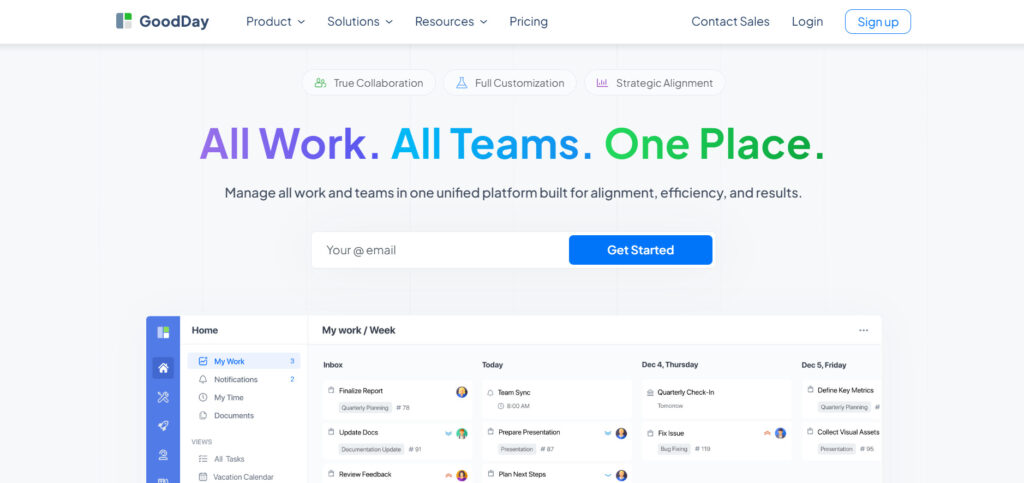
GoodDay is a powerful task management software used by Fortune 500 companies, growing startups, and established businesses across industries. It provides a free plan with unlimited projects for up to 15 users and gives teams access to advanced productivity capabilities earlier than many competing platforms.
The platform includes ready-to-use project templates (for teams such as IT, HR, marketing, etc.), supports multiple pm approaches (including Agile, Waterfall, Scrum, etc.), and offers several work views like advanced Gantt charts and Kanban boards. Software supports unlimited project hierarchy, includes built-in time tracking, offers CRM functionality, and uses some of the best security technologies. GoodDay is top-rated in 12 Capterra shortlists in 2026.
Main features
The platform is often valued for combining a broad feature set with pricing that remains accessible for growing teams.
- Task and project management with unlimited projects and tasks
- Flexible views including list, kanban board, timeline, and advanced Gantt
- Unlimited project hierarchy with folders, subprojects, and dependencies
- Custom workflows and statuses for different teams and processes
- Built-in time tracking for tasks and projects
- Dashboards with widgets for workload, progress, and key metrics
- Reports and analytics for performance and delivery tracking
- CRM and client management features for sales and account workflows
- Automation rules to reduce repetitive manual actions
- Role-based access control and permission management
Integrations
GoodDay connects directly with Google Workspace tools such as Gmail, Google Docs, Google Drive, and Google Calendar, as well as Slack, Dropbox, Box, GitHub, GitLab, and email. It also supports single sign-on through SAML, offers an open API, and can connect to more than 1,300 additional applications through Zapier.
Desktop and mobile capabilities
GoodDay is available on Windows, macOS, and Linux for desktop use, and on iOS and Android for mobile access. Users can manage tasks, projects, and dashboards from any device without losing core functionality.
Pros and cons
| Pros | Cons |
| Trusted by more than 100,000 teams worldwide | Advanced reports require initial setup and configuration |
| Broad set of features | Workflow customization may take extra time to fine-tune |
| Free plan available for up to 15 users | Advanced workflows have a learning curve |
| No forced upgrades | High level of flexibility can slow early adoption |
2) ClickUp
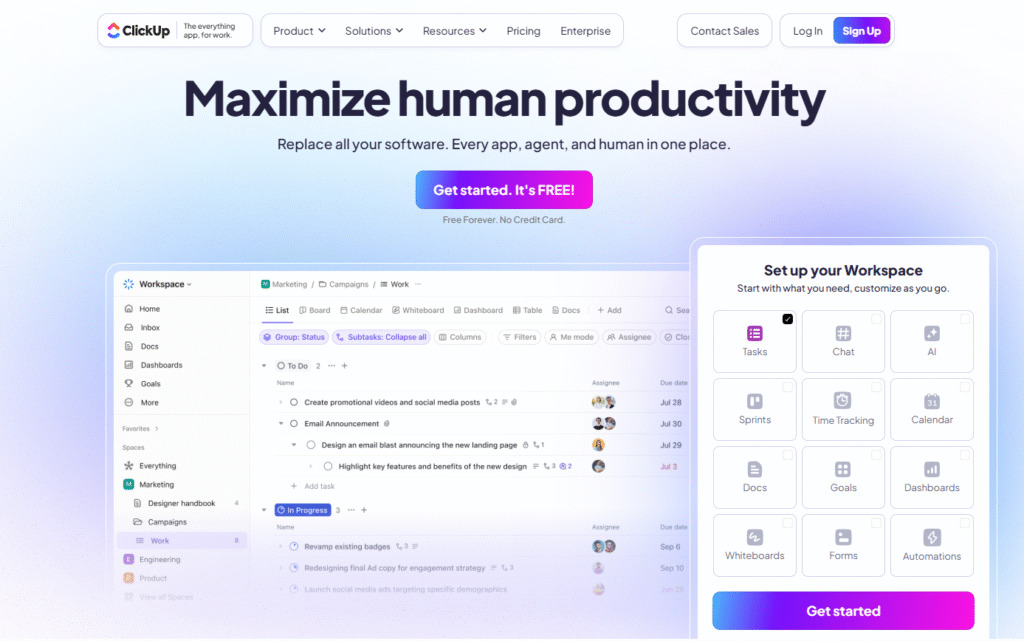
ClickUp is a unified work platform that helps individuals and teams manage tasks, docs, goals, and collaboration in a single workspace. It is built for teams that want deep customization and multiple views of work.
Main features
ClickUp is often chosen for its breadth of views and customization options, which support many work styles and workflows.
- Task management with customizable statuses and nested subtasks
- Multiple views including list, board, calendar, and timeline
- Docs and wikis for internal documentation
- Goal tracking and portfolios for cross-team alignment
- Automations to reduce repetitive work
- Custom fields and templates for different workflows
- Time tracking and reporting tools
- Dashboards that combine key project metrics
- Native AI tools for summaries and assistance
- Comments, notifications, and built-in chat for collaboration
Integrations
ClickUp provides integrations with many tools and services directly and through supported connections, allowing data flow with calendars, email, messaging apps, storage services, and more.
Desktop and mobile capabilities
ClickUp is available on Windows, macOS, iOS, and Android devices, so users can view tasks, dashboards, and notifications from desktop or mobile.
Pros and cons
| Pros | Cons |
| Highly customizable for many work styles | Feature depth can feel overwhelming for new users |
| Free plan supports unlimited tasks for teams | Setup and organization require time to optimize |
| Multiple work views and automation options | Some advanced features are gated behind paid plans |
| Native docs, chat, and dashboards in one place | Interface can feel cluttered to simple task users |
3) Monday.com
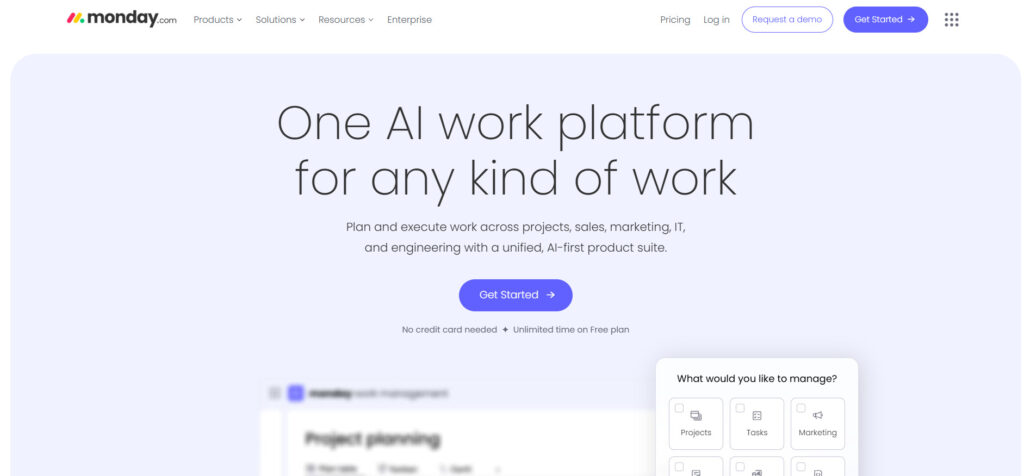
Monday.com is designed to help teams plan, organize, and track tasks, projects, and workflows in a flexible visual workspace. It uses customizable boards, templates, and automation to give teams visibility into work and support collaboration across departments.
The platform is suited for teams that want strong visual planning tools and flexible workflows that scale from individual contributors to larger cross-functional teams.
Main features
The platform is known for its visual work boards and extensive customization combined with scalable planning tools.
- Visual boards to organize tasks and work items
- Multiple views including kanban, calendar, timeline, and Gantt options
- Pre-built templates for planning and execution
- Automation to reduce repetitive actions
- Custom fields and columns to structure task data
- Dashboards to visualize status, progress, and workload
- Collaboration tools including comments, mentions, and file attachments
- Notification and alert system for task updates
- Time tracking for monitoring task duration
- Reporting and analytics for oversight
Integrations
Monday.com connects with many external tools and services to centralize work data, allowing teams to integrate calendars, messaging apps, cloud storage, and development tools through built-in integrations.
Desktop and mobile capabilities
Monday.com offers native applications for Windows, macOS, iOS, and Android so users can access boards, tasks, dashboards, and notifications from desktop or mobile devices.
Pros and cons
| Pros | Cons |
| Flexible visual boards support a range of workflows | Free plan has limited users and features |
| Customizable templates and fields for structuring work | Pricing increases rapidly with advanced tiers |
| Automations help reduce repetitive work | Some advanced views are gated behind higher plans |
| Strong collaboration tools and templates | Can be overwhelming for simple use cases |
4) Todoist
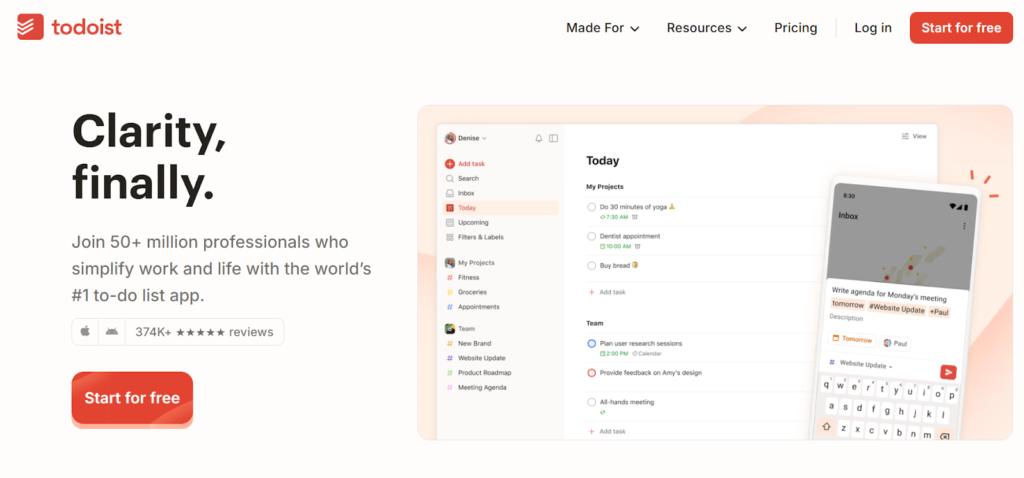
Todoist is a simple but powerful task management app that helps people and teams organize and prioritize work with lists, projects, and due dates.
Todoist provides flexible task lists and basic collaboration tools that work well for personal productivity and light team task planning. It is often chosen by users who want a clean interface combined with enough power for everyday tasks without the complexity of full project management suites.
Main features
The platform stands out for balancing core task management functions with ease of use.
- Projects and task lists to group related work
- Priority levels to highlight important tasks
- Subtasks and sections to break up larger work
- Custom filter views to focus on specific tasks
- Labels and tags for task organization
- Due dates and recurring schedules
- Activity history and task comments
- Team shared projects and templates (Business plan)
- Integrations with email and calendar apps
- Natural language input for quick task creation
Integrations
Todoist connects with common tools such as email clients, calendars, and many third-party services through integrations to help teams coordinate tasks across platforms.
Desktop and mobile capabilities
Todoist offers native apps for Windows, macOS, iOS, and Android, and also works in web browsers so users can manage tasks on desktop and mobile devices.
Pros and cons
| Pros | Cons |
| Easy and intuitive list and project organization | Free plan has limited projects and features |
| Works well for personal and light team use | Collaboration features are basic compared to larger work platforms |
| Wide availability on devices and platforms | Most advanced views require paid plans |
| Natural language task input and reminders | Some users may need more detailed project tools |
5) TickTick
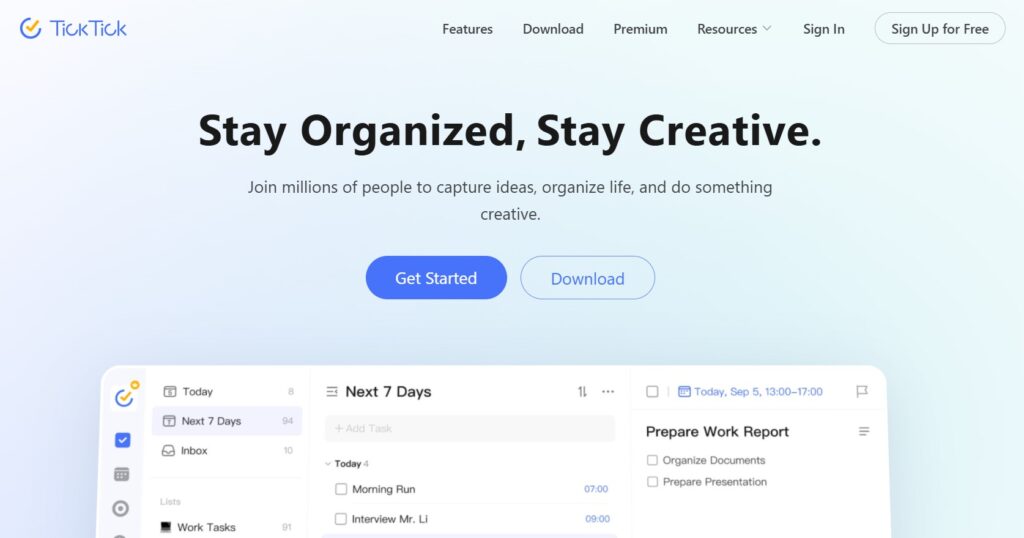
TickTick is a task and to-do list app designed for individuals and small teams to manage tasks, schedules, and habits in one place.
It offers calendar views, habit tracking, focus timers, and more, making it ideal for personal productivity and light team use.
Main features
The platform is known for combining task management with planning and focus tools.
- Task lists and folders for structured organization
- Calendar view to see tasks over time
- Habit tracker to build daily routines
- Focus timer for Pomodoro-style work sessions
- Reminders and recurring tasks
- Subtasks and priority levels
- Tags and lists for categorization
- Notes and attachments for detailed planning
- Smart date recognition for quick task entry
- Widget support for mobile convenience
Integrations
TickTick integrates with calendar apps and supports import/export with other platforms where available.
Desktop and mobile capabilities
TickTick is available on Windows, macOS, iOS, and Android, allowing users to manage tasks and focus tools across devices.
Pros and cons
| Pros | Cons |
| Combines tasks, calendar, and habits | Team collaboration features are limited |
| Focus timer and Pomodoro tools built in | Free plan has limited premium features |
| Easy to use and lightweight | Not designed for complex project workflows |
| Affordable premium subscription | Fewer third-party integrations compared to enterprise tools |
6) Asana
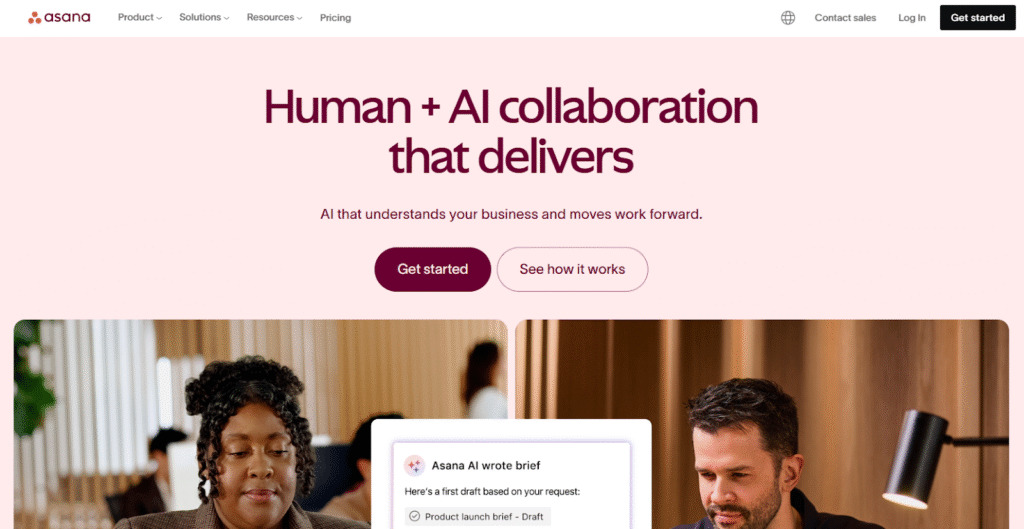
Asana is built to help teams plan, assign, and track work across shared projects. It allows teams to break work into tasks and subtasks with owners, due dates, priorities, and clear status tracking.
Asana supports multiple task views, including lists, boards, and timelines, which helps teams visualize progress and dependencies. It is especially useful for cross-functional teams that need visibility, accountability, and structured collaboration without complex setup.
Main features
The platform is commonly chosen for its team coordination and visualization options.
- Task lists with priorities, due dates, and assignees
- Board views for kanban-style work tracking
- Timeline view to map out project schedules
- Workflow automation to reduce manual steps
- Custom fields to tailor task data
- Goal and milestone tracking
- Project templates to speed setup
- Workload view to balance team capacity
- Reporting dashboards with status insights
- Team conversations and comments
Integrations
Asana offers integrations with email, calendar apps, storage solutions, messaging tools, and other work platforms to help teams sync work across services.
Desktop and mobile capabilities
Asana is available via web browsers and has apps for Windows, macOS, iOS, and Android so teams can collaborate on any device.
Pros and cons
| Pros | Cons |
| Strong team collaboration tools | Advanced reporting features require higher plans |
| Multiple work views support different workflows | Setup and onboarding can take time |
| Workflow automation saves manual tasks | Some features are only in premium tiers |
| Wide ecosystem of integrations | Can be overwhelming for simple task lists |
7) Wrike
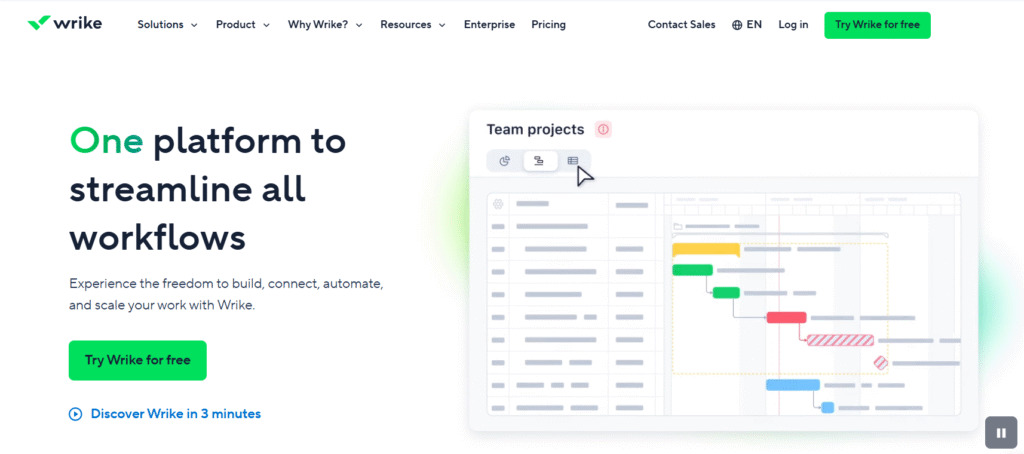
Wrike is a work management platform designed for visibility, cross-team coordination, and structured execution of work. Its task features include custom statuses, dependencies, and request forms to help control how work flows through teams.
Wrike features dashboards and reporting tools that show task progress and bottlenecks in real time. Teams can set up automated actions and enforce consistency with approval and review processes.
Main features
The platform is valued for detailed workflow management and enterprise features.
- Task and project hierarchy with custom statuses
- Board and list views for flexible tracking
- Gantt charts and timeline views for planning
- Automation rules for repetitive tasks
- Custom dashboards for insights
- Resource and workload management
- Reporting and analytics tools
- Request forms to standardize inputs
- Time tracking for tasks and projects
- Role-based permissions for teams
Integrations
Wrike integrates with key productivity tools, email services, calendars, file storage, and communication platforms to centralize workflows.
Desktop and mobile capabilities
Wrike is accessible via web browsers and offers iOS and Android apps, allowing teams to manage tasks and workflows on mobile and desktop.
Pros and cons
| Pros | Cons |
| Strong reporting and analytics tools | Higher cost at advanced plans |
| Workflow flexibility and automations | Steeper learning curve for new users |
| Custom dashboards for visibility | Some features require paid tiers |
| Suitable for large teams and enterprises | Setup can be complex for simple use cases |
8) Trello
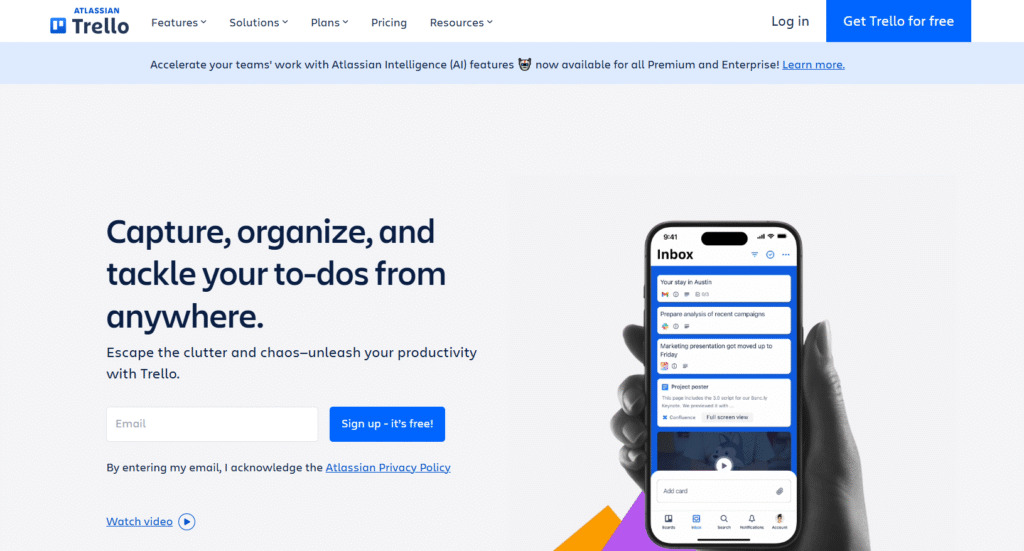
Trello uses visual boards with lists and cards so work items are easy to organize and update at a glance. Tasks move across columns representing stages of progress, making it straightforward for teams to track what is being worked on and what is done.
Trello supports simple checklist subtasks, labels, and due dates to structure individual work. Power-ups extend board functionality with calendar views, integrations, and reporting.
Main features
The platform is popular for its simplicity and visual board layout.
- Board, list, and card structure for visual task management
- Drag-and-drop task movement
- Labels and tags for categorization
- Checklists within tasks for subtasks
- Due dates and reminders
- Power-ups to extend board functionality
- Attachments and file support
- Activity log for tracking changes
- Team boards for collaboration
- Custom backgrounds and views
Integrations
Trello integrates with calendars, communication tools, storage services, and business apps through built-in integrations and power-ups.
Desktop and mobile capabilities
Trello is available on Windows, macOS, iOS, and Android, and also accessible via web browsers.
Pros and cons
| Pros | Cons |
| Simple and intuitive kanban boards | Limited for complex project management |
| Free plan supports basic use cases | Power-ups needed for advanced workflows |
| Visual task organization | Not ideal for detailed timeline planning |
| Easy onboarding and use | Fewer built-in advanced features |
9) Airtable
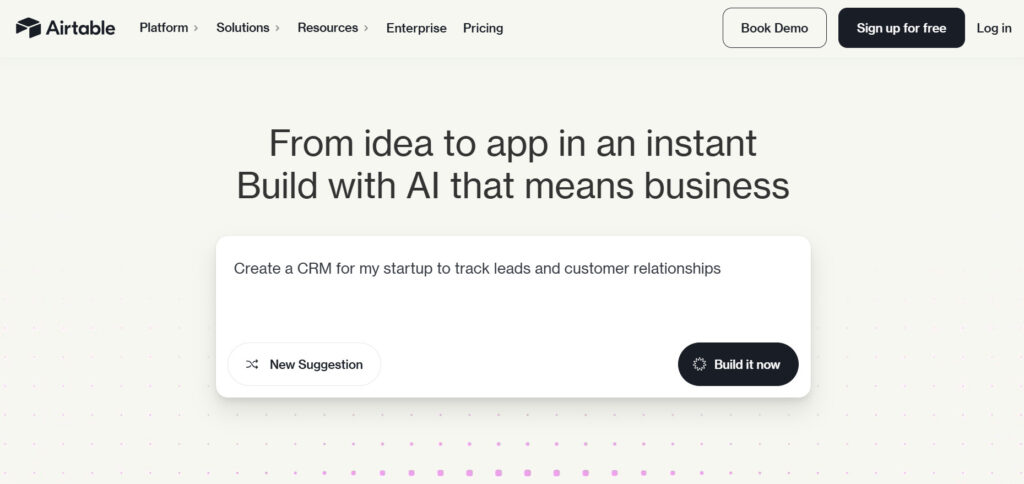
Airtable combines the simplicity of spreadsheets with the flexibility of a database so teams can customize how work and data relate. Tasks are organized as records in tables that can be viewed in grids, calendars, kanban, and gallery formats.
Airtable offers linked tables, custom fields, and views that adapt to workflow needs, from content calendars to project tracking. It also includes automation and app blocks to extend task interactions and notifications.
Main features
The platform is known for combining database capabilities with task tracking.
- Spreadsheet-style tables that link related records
- Multiple views including grid, calendar, gallery, and kanban
- Custom fields for tailored data types
- Forms to collect information from users
- Blocks and apps to extend workflows
- Collaboration comments and history
- Sorting, filtering, and grouping for data organization
- Integrated reporting charts
- Automations for task and data triggers
- Permissions for team access control
Integrations
Airtable integrates with messaging tools, calendars, storage solutions, email, and other work platforms through native integrations.
Desktop and mobile capabilities
Airtable is available through web browsers and has apps for Windows, macOS, iOS, and Android.
Pros and cons
| Pros | Cons |
| Combines database and task tracking in one | Paid plans are relatively expensive |
| Flexible views and custom data structures | Can be complex for basic task lists |
| Powerful automations and blocks | Requires time to learn relationships and structure |
| Collaboration features across records | Not focused purely on task tracking |
10) Motion
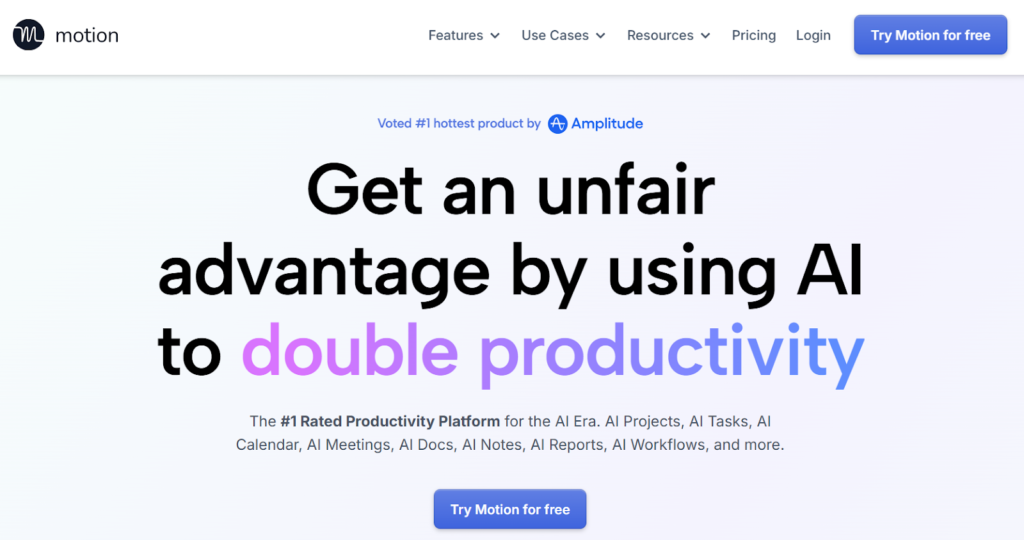
Motion uses artificial intelligence to automatically schedule and prioritize work based on deadlines, task duration, and availability. Rather than requiring users to place tasks manually into a calendar, Motion optimizes daily plans by adjusting schedules as priorities change.
Motion links tasks with your calendar so work blocks reflect realistic time commitments and commitments. The focus is on time allocation and finishing work rather than detailed hierarchical task tracking.
Main features
The platform is built around AI planning and automatic scheduling.
- AI-based task scheduling and prioritization
- Real-time calendar optimization
- Deadline and duration management
- Task list and project grouping
- Time blocking and focus sessions
- Automatic reshuffling based on changes
- Daily work suggestions from AI
- Notifications and reminders
- Integration with external calendars
- Reporting on time usage
Integrations
Motion connects with calendar platforms and task sources to align scheduled work with other systems.
Desktop and mobile capabilities
Motion offers web access and mobile apps so users can view schedules and tasks from any device.
Pros and cons
| Pros | Cons |
| Powerful AI-driven scheduling | Not built for traditional project task hierarchies |
| Automatic prioritization and time allocation | Paid plans with no free tier |
| Real-time calendar adjustments | May feel unpredictable for structured teams |
| Works well for personal planning | Limited advanced work management tools |
11) Jira
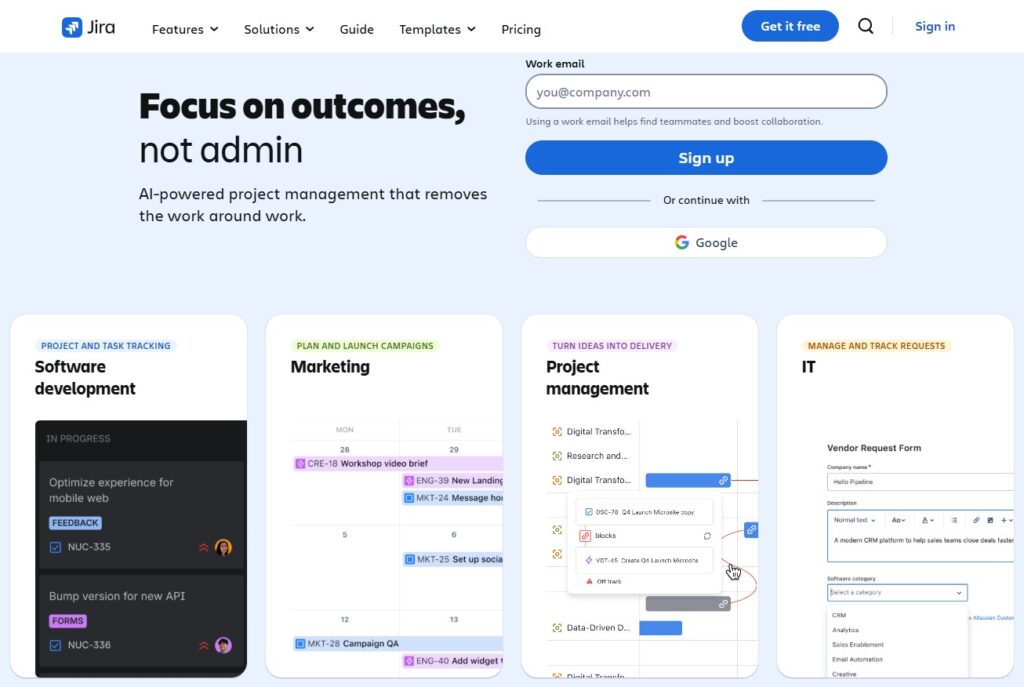
Jira provides comprehensive support for agile teams working in sprints, backlogs, and releases, mainly in software development environments. Users create issues that represent tasks, bugs, or features and organize them into backlogs for planning.
Jira offers kanban and scrum boards, detailed workflows, and advanced reporting like velocity and burndown charts. It also integrates tightly with development ecosystems to bring code, builds, and tickets together.
Main features
The platform is designed for software and agile workflows with robust tooling.
- Scrum and kanban boards for agile planning
- Issue and bug tracking across teams
- Backlog prioritization and sprint planning
- Release and version tracking
- Custom workflows for development processes
- Advanced search and filters for issues
- Integration with code repositories and CI/CD tools
- Roadmaps for planning future work
- Reporting and velocity charts
- Permissions and project roles for teams
Integrations
Jira integrates with major development tools, version control systems, and collaboration services to align work across the dev toolchain.
Desktop and mobile capabilities
Jira is available in web browsers and has mobile apps for iOS and Android to track tasks on the go.
Pros and cons
| Pros | Cons |
| Designed for agile and dev teams | Can be complex for non-software teams |
| Strong issue tracking and reporting | Steep learning curve for new users |
| Integrates with development tools | Some features only in higher tiers |
| Flexible workflows and customization | Setup needs careful planning |
12) Google Tasks
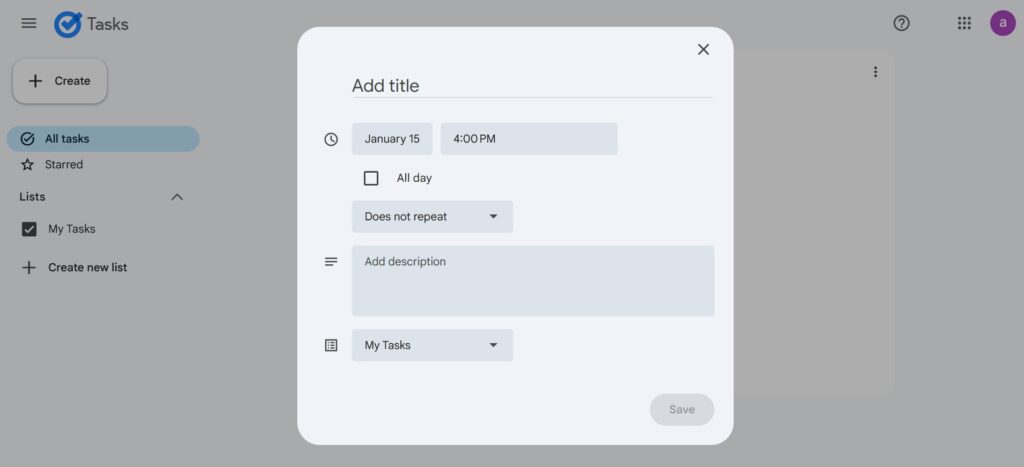
Google Tasks is a simple task list solution that sits alongside Gmail and Google Calendar so users can capture work without leaving their email or schedule. Tasks can have basic details, due dates, and subtasks.
Google Tasks syncs across devices and works well for individuals who want a lightweight way to manage personal to-dos within the Google Workspace environment. It is not designed for complex team task planning but integrates naturally with Google apps.
Main features
The platform is valued for quick and straightforward task entry and integration with email.
- Simple task lists and subtasks
- Integration with Gmail and Google Calendar
- Due dates and basic reminders
- Task description and details
- Drag-and-drop reordering
- Cross-device syncing
- Light and clean interface
- Quick add from email messages
- No complex settings or views
- Designed for personal task use
Integrations
Google Tasks connects directly with Google Workspace apps like Gmail and Calendar for seamless task creation from messages and events.
Desktop and mobile capabilities
Google Tasks is accessible in Gmail, Google Calendar, and through mobile apps on iOS and Android.
Pros and cons
| Pros | Cons |
| Included free with Google accounts | Very basic compared to full task platforms |
| Integrates well with Gmail and Calendar | No advanced project views |
| Clean and simple interface | Limited for team collaboration |
| Syncs across devices automatically | Lacks automations and templates |
13) Microsoft To Do / Tasks
Microsoft To Do and the integrated Tasks experience in Microsoft 365 help users organize personal tasks and flagged emails in Outlook. Users can create lists, set reminders, and plan work day by day.
For organizations using Microsoft 365, Tasks appear across Outlook, Teams, and Planner so work is tied to where people already communicate. These tools are ideal for individual task organization and light team coordination, not full project task hierarchies.
Main features
The platform is appreciated for its integration with Microsoft 365 and simple task capabilities.
- Task lists and grouped tasks
- Due dates and reminders
- My Day focus planner feature
- Integration with Outlook and Microsoft 365 apps
- Subtasks and notes
- Cross-device syncing
- Priority markers and flags
- Recurring tasks support
- Simple tagging and filtering
- Clean interface for task management
Integrations
Microsoft To Do / Tasks connects directly with Outlook, Teams, and other Microsoft 365 apps for synchronized task handling.
Desktop and mobile capabilities
Microsoft To Do is available on Windows, macOS, iOS, and Android, and integrates with Microsoft 365 services across devices.
Pros and cons
| Pros | Cons |
| Included with Microsoft 365 at no extra cost | Not designed for complex project workflows |
| Integrates tightly with Outlook and Teams | Limited views and customization |
| Easy for personal task lists | Basic compared to full work platforms |
| Syncs across devices with Microsoft account | Few advanced management features |
Paid vs free task management software
Free task management software works well for individuals or very small teams with simple needs. Paid task management software becomes necessary when work involves multiple people, dependencies, deadlines, and accountability. Let’s take a look at the key differences between free and paid task management software:
- Feature depth: Free plans usually cover basic task lists, due dates, and simple reminders, while paid plans add timelines, Gantt charts, automations, reporting, and advanced views.
- Team size and collaboration: Free versions often limit the number of users or collaborative features, while paid plans support larger teams with shared projects, roles, permissions, and workload management.
- Customization and workflows: Free plans typically offer fixed workflows, while paid plans allow custom statuses, workflows, fields, and automation rules tailored to how a team works.
- Integrations: Free tiers usually include a small set of integrations, while paid plans unlock deeper integrations with calendars, email, development tools, CRMs, and external systems.
- Reporting and visibility: Free tools provide limited or no reporting, while paid plans include dashboards, analytics, and progress tracking for managers and stakeholders.
- Support and reliability: Free plans usually come with basic or community support, while paid plans include priority support and stronger service guarantees.
Most important features of collaborative task management app
Task management software works best when it supports how people actually work, not when it forces rigid processes. The features below are the ones that have the biggest impact on clarity, focus, and day-to-day productivity.
| Feature | How it works | How it helps to be productive |
| Task organization | Tasks are grouped into lists, projects, or folders with due dates and owners | Helps teams see what needs to be done and who is responsible |
| Views and layouts | Work can be displayed as lists, boards, calendars, or timelines | Lets each team member choose the view that matches their working style |
| Task dependencies | Tasks can be linked so one cannot start until another is finished | Prevents bottlenecks and missed deadlines |
| Custom workflows | Statuses and steps can be tailored to how work moves through a team | Reduces confusion and keeps work moving consistently |
| Collaboration tools | Comments, mentions, and file sharing live directly on tasks | Keeps conversations tied to work instead of scattered across tools |
| Automation | Repetitive actions are triggered automatically based on rules | Saves time and reduces manual errors |
| Reporting and dashboards | Progress, workload, and deadlines are visualized in real time | Gives managers and teams visibility without constant check-ins |
| Integrations | Tasks sync with calendars, email, and other work apps | Reduces context switching and duplicate work |
| Access and permissions | Roles define who can view, edit, or manage tasks | Protects sensitive information while enabling collaboration |
How to select the perfect tool for task management and team collaboration
When choosing task management software, focus on what will reduce friction in your daily work, not on how many features the tool advertises. Free plans and trials are useful because they let you test whether the software actually fits your routine before you invest time or money.
Start with your real daily tasks
List the tasks you handle every day and how you currently track them. The right tool should make those tasks faster to manage, not require extra steps or workarounds.
Consider how you work with others
If you collaborate with a team, shared visibility matters. Comments, notifications, and clear ownership of tasks help avoid confusion and constant follow-ups.
Check integrations with tools you already use
A task manager should work well with your calendar, email, and other apps you already use. Good integrations reduce manual updates and help keep everything in sync.
Think about scale, not just today
Choose software that works for you now but can grow with you. Even if you work solo today, make sure the tool can handle collaboration, shared projects, or reporting if your workload expands.
Pay attention to clarity
A good task manager makes it easy to see what is due today, what is blocked, and what needs attention next. If you have to dig through menus or views to understand your priorities, productivity will suffer.
Evaluate how changes are handled
Work changes constantly, so test how easy it is to move deadlines, reassign tasks, or update priorities. Tools that handle changes smoothly save time and reduce stress.
Decide based on one week of real use
Use the software for a full week with real deadlines and real work. If it still feels helpful after several days, it is likely a good long-term fit.
GoodDay – task management software you can rely on
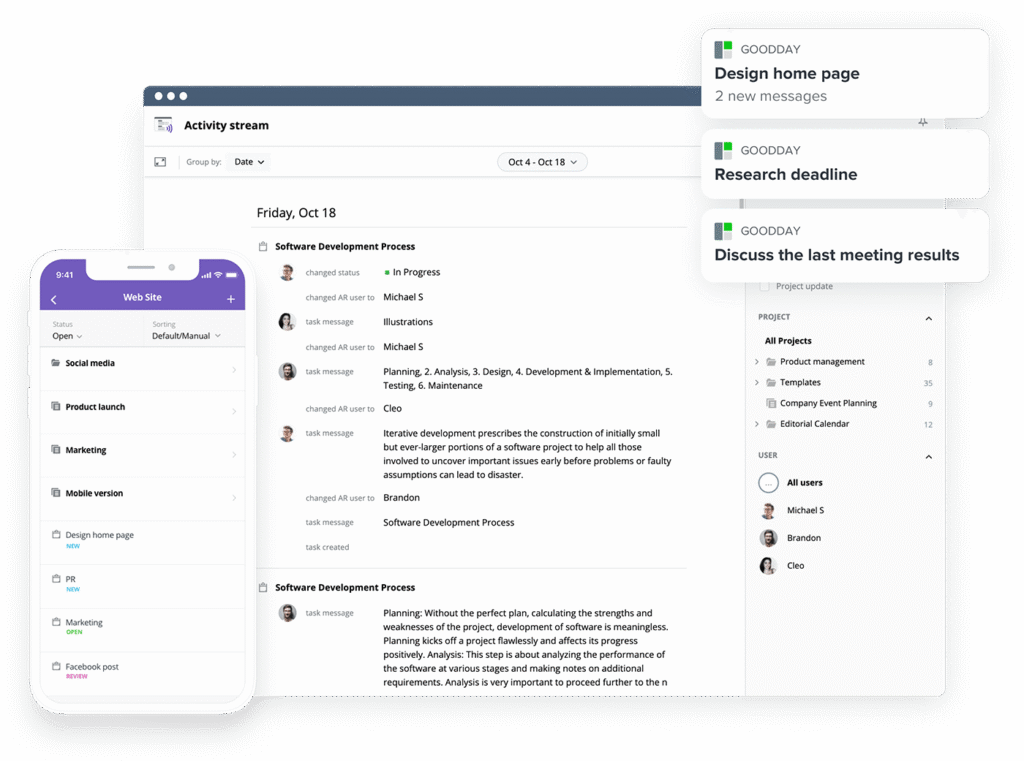
GoodDay is one of the most popular task management software globally for its powerful functionality.
You can start using GoodDay for free to see how it fits your workflow.
And if you have any questions about selecting the right software, you can always connect with our team via info@goodday.work
FAQs
What is the best task management software?
The best task management software is one that helps teams work smarter by keeping tasks, priorities, and deadlines in one place. GoodDay stands out because it combines tasks, projects, planning, tracking, and reporting in a single platform without forcing teams to use other tools. It supports multiple projects while keeping everything connected and easy to follow. This makes it easier to keep work organized as teams grow.
What is a task list?
A task list is a structured way to track what needs to be done, often starting as a simple to do list. It helps individuals and teams create tasks, set priorities, and track progress until work is marked complete. Modern task lists are usually part of a broader system rather than standalone other lists. This allows work to stay connected to deadlines, people, and outcomes.
Where can I find a task management template?
You can find task management templates inside most modern task management platforms. GoodDay includes a built-in task list template designed for different teams and workflows, so you do not need a separate subscription or external files. Templates help teams align teams quickly around a shared structure.
What is the best app for team task management?
The best app for team task management is one that allows teams to assign tasks, track progress, and stay aligned in real time. GoodDay works well for teams because it provides a consolidated view of work across people and projects. Everyone can see priorities, ownership, and deadlines in one place. This reduces follow-ups and miscommunication.
How can I create a task distribution table?
A task distribution table shows who is responsible for what and when tasks are due. In GoodDay, you can create dashboards and reports that show workload and task ownership without manual spreadsheets. This gives managers the ability to balance work fairly across team members. It also helps prevent overload before it becomes a problem.
What task management system has the best features?
The best system combines planning, execution, and visibility without unnecessary complexity. GoodDay offers advanced features like custom views, automation, reporting, and built-in tracking in one platform. These features are already implemented and ready to use, not locked behind add-ons. This makes it easier to manage work at scale.
What are the top project and task management tools?
Top project and task management tools include platforms that handle daily tasks as well as long-term planning. GoodDay is often chosen because it supports both task tracking and project structure in one workspace. This helps teams make an informed decision without stitching together multiple apps. It also reduces tool fatigue.
What are the best free task management tools?
The best free task management tools offer real functionality, not just limited demos. GoodDay provides a free plan for up to 15 users with unlimited projects and core features. This allows teams to test real workflows before upgrading. Few tools offer this level of value without restrictions.
What is the best agile task management platform?
The best agile platform supports backlogs, workflows, and continuous planning. GoodDay offers customizable agile task management template while also allowing flexibility for teams that mix processes. It does not force rigid structures and adapts to how teams actually work.
Where can I make task Gantt chart?
Task Gantt charts are used to plan timelines and dependencies visually. GoodDay includes advanced Gantt charts without requiring add-ons. Teams can plan timelines, dependencies, and delays quickly. This improves planning accuracy and delivery confidence.
What is the best task management app?
The best task management app is one that works for individuals and teams without becoming cluttered. GoodDay keeps tasks connected to goals, projects, and reporting in one place. It also includes modern ai features to assist planning and visibility. This helps users stay focused instead of switching tools.
How to organize daily tasks at work?
Daily tasks are easier to manage when priorities are visible and realistic. Using one system helps avoid scattered notes and forgotten follow-ups. GoodDay lets teams plan daily work while staying connected to bigger goals. This approach supports consistency and focus.
What are the best tools to organize work tasks?
The best tools help teams organize work tasks without overwhelming them. GoodDay brings tasks, planning, tracking, and reporting together for teams and customers who need clarity. It reduces manual updates and improves coordination. This makes work easier to manage over time.