Overview
Getting the right notification at the right moment can be very important and can prevent potential miscommunication, bottlenecks, delays in collaboration, and ultimately missed deadlines.
www.goodday.work//help/notifications/overview
Goodday Notifications
With GoodDay, you don’t have to spend time on status update meetings or distract your team members to confirm whether any progress has been made lately on a a particular task.
www.goodday.work//help/notifications/goodday
Email notifications
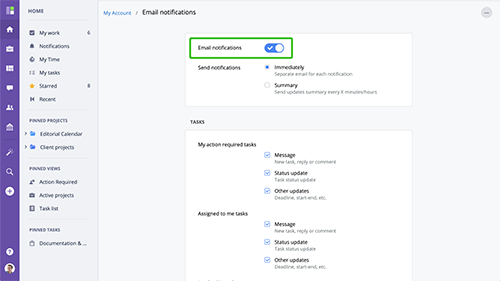
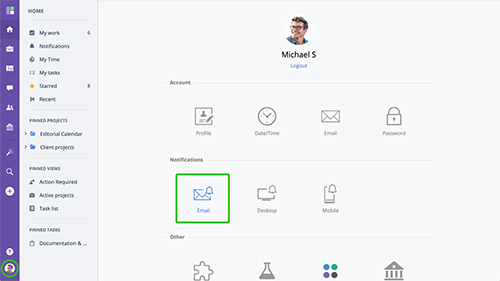
To access email notifications settings, go to My Account and click Email Notifications. Enabling/Disabling Email Notifications. You can completely turn email notifications off by toggling Email Notifications switch.
www.goodday.work//help/notifications/email
Desktop notifications
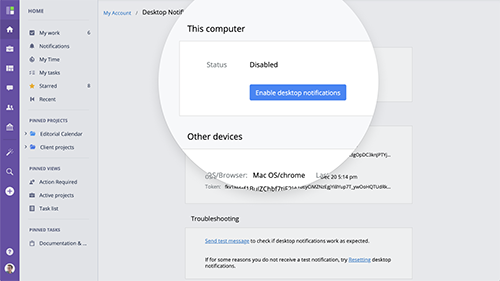
To enable Desktop Notifications, go to My Account → Desktop Notifications. Then toggle "Enabled" switch into the "On" position.
www.goodday.work//help/notifications/desktop
Mobile notifications
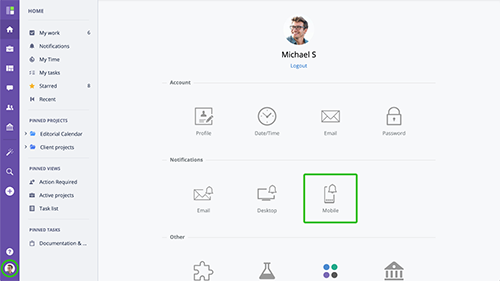
To enable Mobile Notifications, go to the Settings section on your mobile phone and enable mobile notifications.
www.goodday.work//help/notifications/mobile